FREEZVON
Bria Solo Setup Guide for Android
Since Bria Solo requires you to configure SIP credentials via the CounterPath portal before logging into the app, this guide covers both the web portal setup and the Android app setup. Steps 1 and 2 are completed in the web portal and are the same whether you use Android or another supported device.
Step 1. Create a Bria Solo Account
Setting up Bria Solo begins with creating an account on the developer's website (CounterPath).
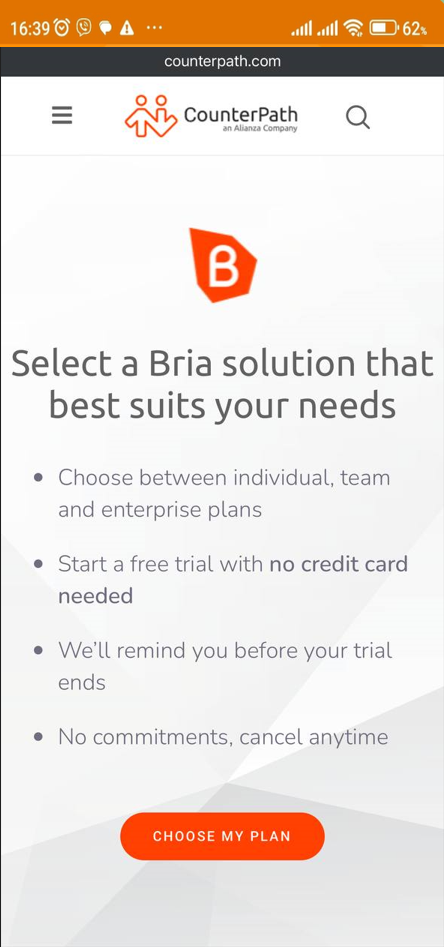
Go to counterpath.com, click "Start my free trial", and then select "Choose my plan".
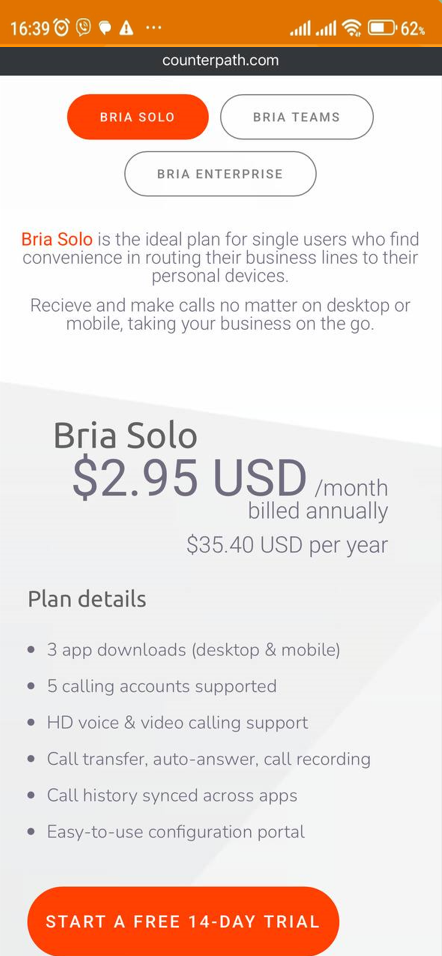
Select the Bria Solo plan and click "Start a free 14-day trial".
Enter your Email. This address will serve as your login credentials for both the website and the mobile app.
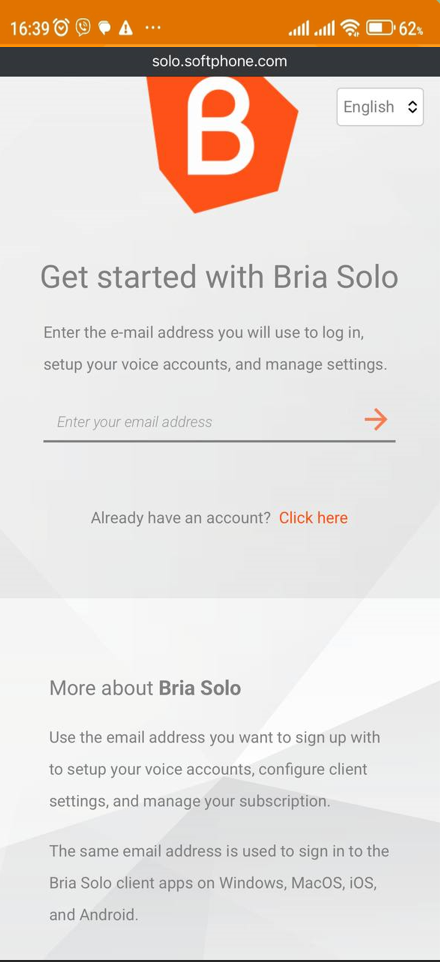
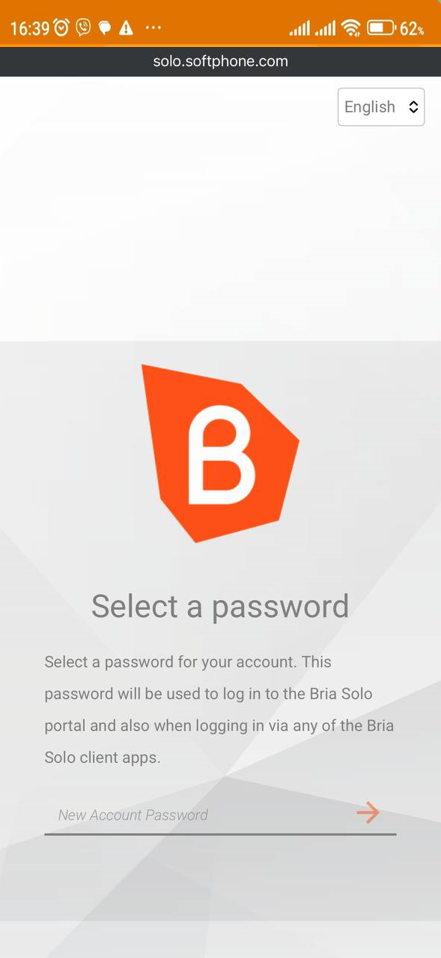
Create a Password to secure your account.
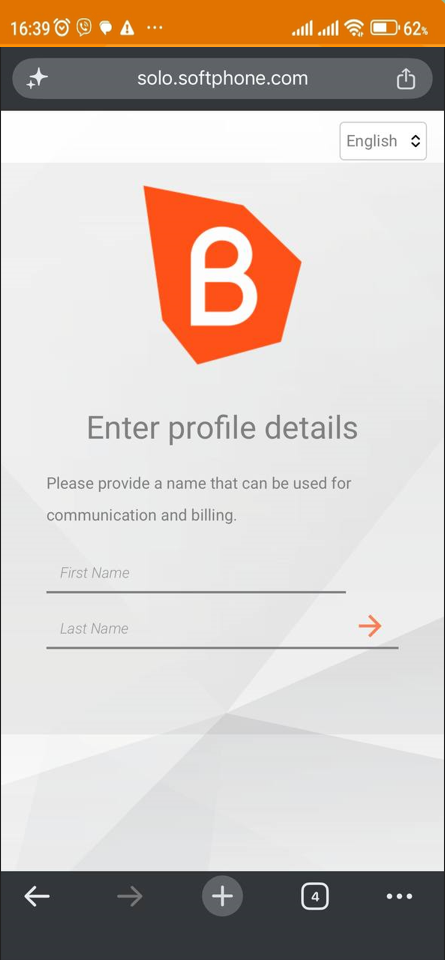
Enter your First Name and Last Name.
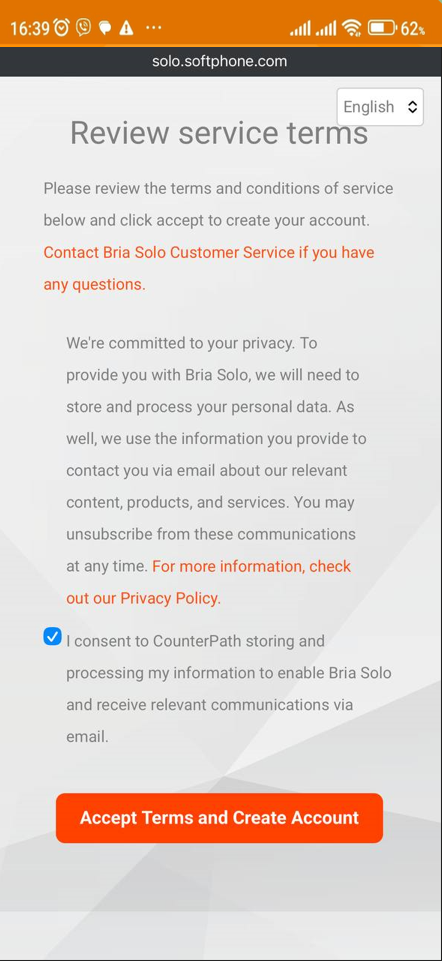
Review the Terms of Service and Privacy Policy, then click "Accept Terms and Create Account".
Step 2. Configure Your SIP Account in the Web Portal
On the welcome screen, click "Set up a Voice Account".
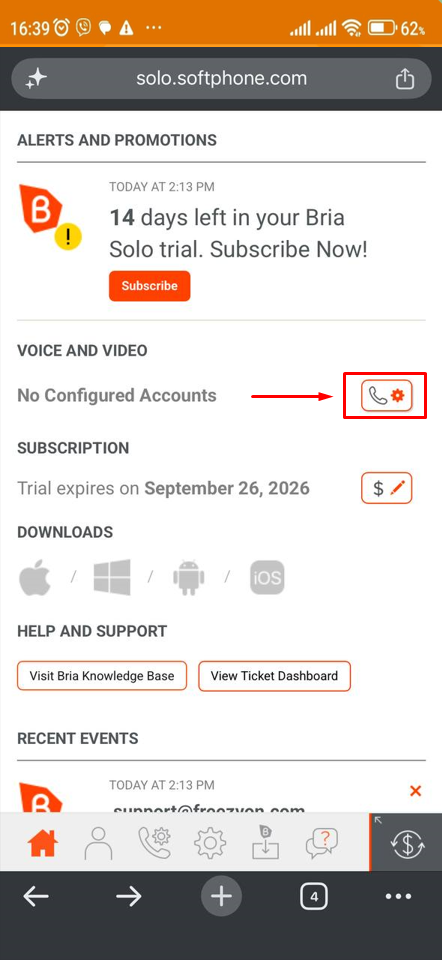
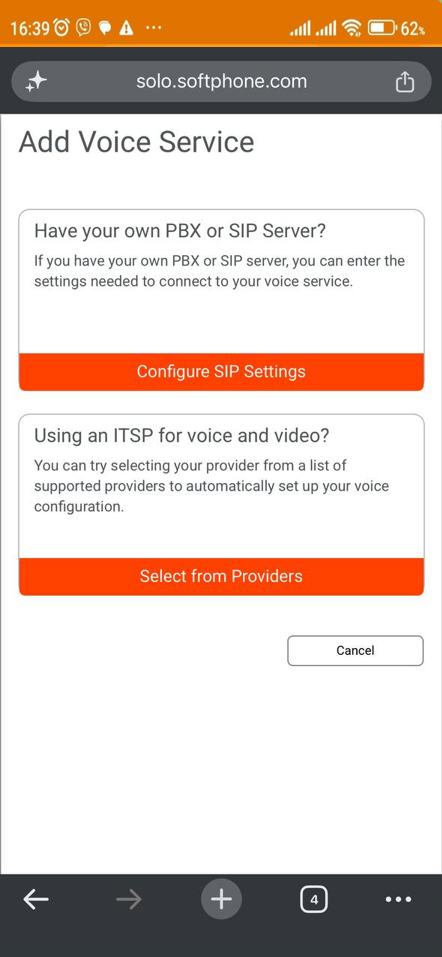
Select "Configure SIP Settings" to connect your third-party VoIP provider (e.g., Freezvon or your Virtual PBX).
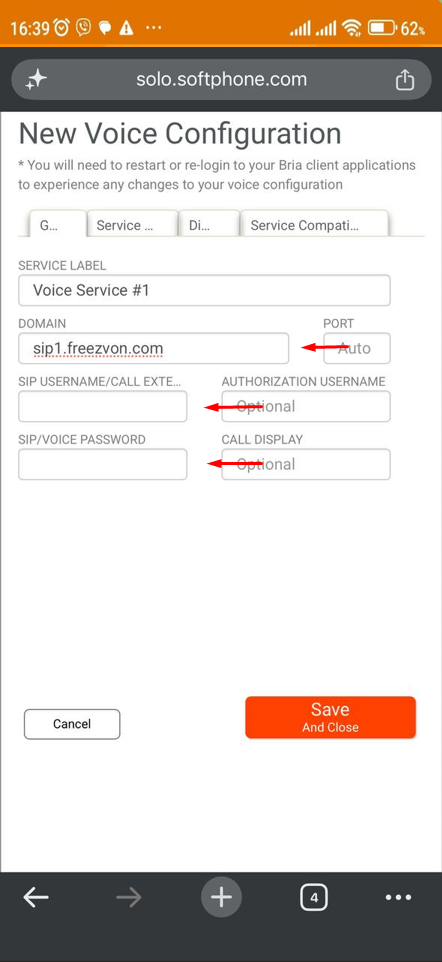
Fill in the required SIP parameters:
- Domain: sip1.freezvon.com (or your specific PBX server address).
- SIP Username / Call Extension: Your SIP account login or PBX extension number.
- SIP / Voice Password: Your SIP password.
- Leave the remaining fields set to their defaults.
Click "Save and close" to save.
Step 3. Install and Log In on Android
Open the Google Play Store on your Android device, search for Bria - VoIP SIP Softphone (the Bria Solo/Teams app by CounterPath), and tap "Install".
Launch the Bria app on your Android device.
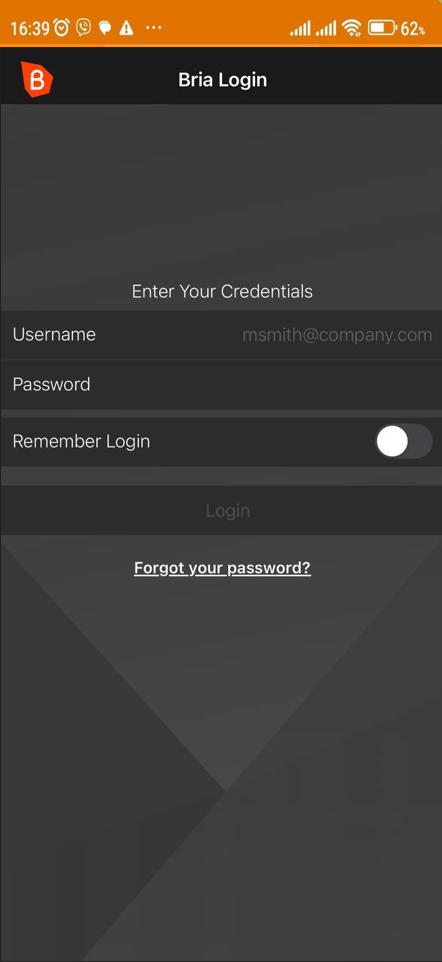
Enter the Email and Password you created during Step 1, then tap "Log In".
When prompted by Android, grant the necessary permissions:
- Microphone: Required for making and receiving calls.
- Notifications: Required to receive incoming call alerts, including when the app is running in the background.
- Contacts: Optional; allows you to call directly from your phonebook.
Step 4. Verify Connection Status
Once logged in, the app will automatically fetch and apply the SIP profile you configured on the website.
Check the status indicator at the top of the main screen:
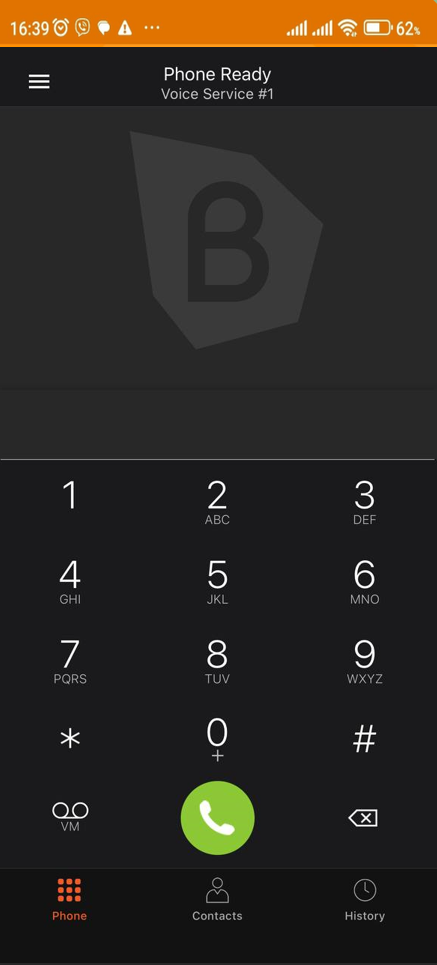
- The status "Phone Ready" indicates that the connection was successful and the phone is ready to make and receive calls.