FREEZVON
SIPdroid Setup Guide for Android with Freezvon
This guide explains how to configure a Freezvon SIP account in SIPdroid on Android.
Before you begin, make sure you have your Freezvon SIP credentials:
| SIP Server / Domain | sip1.freezvon.com |
|---|---|
| SIP Username | your Freezvon SIP account login |
| SIP / Voice Password | your Freezvon SIP account password |
Step 1. Install SIPdroid
Find and download SIPdroid from Google Play.
After the installation is complete, open the application.
Step 2. Open SIPdroid Settings
After successful installation, launch SIPdroid and enter the application's Settings.
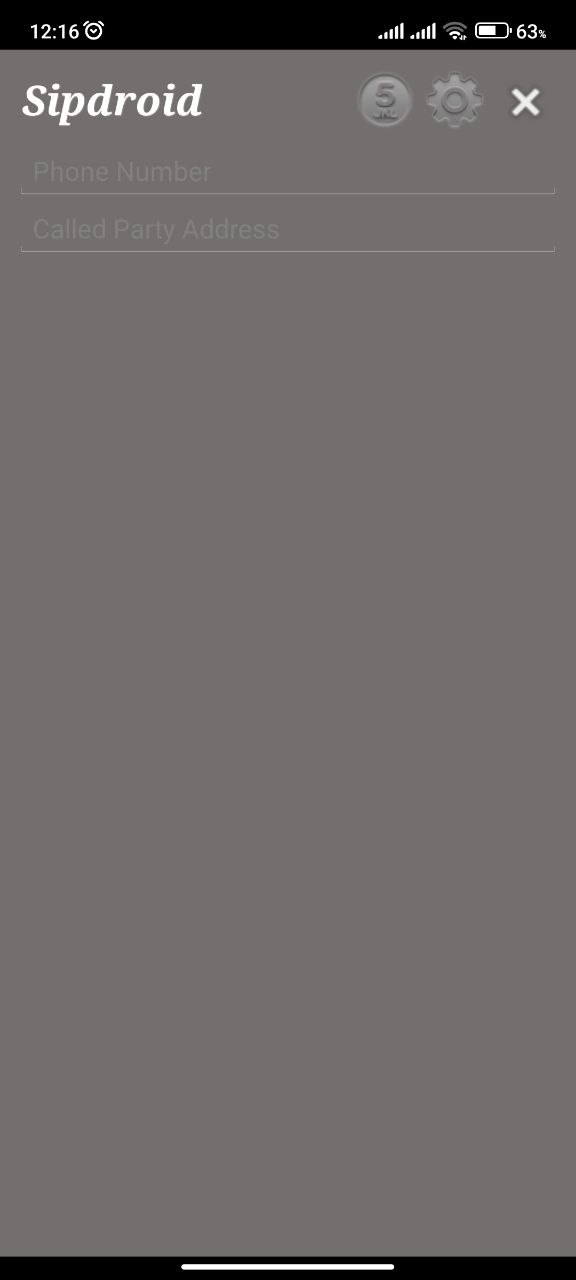
From the main screen, open the settings menu to configure your Freezvon SIP account.
Step 3. Select the SIP Account
In the Settings menu, select:
SIP Account
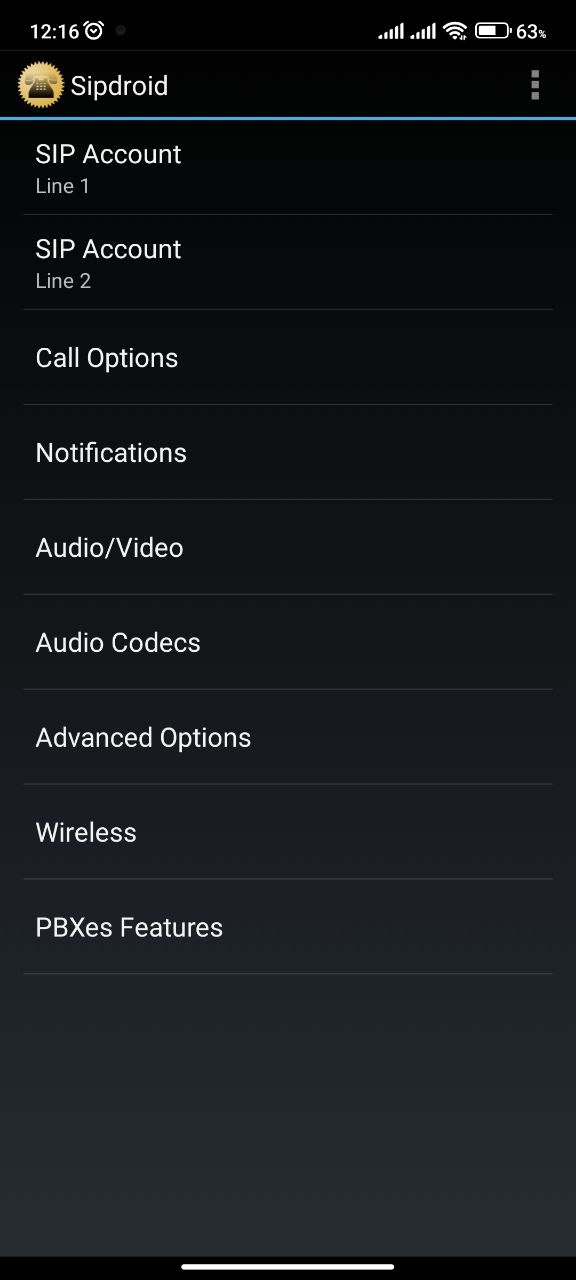
This section contains the SIP registration settings required to connect SIPdroid to Freezvon.
Step 4. Enter Your Freezvon SIP Credentials
Enter the following information:
Authorization Username / Login:
Enter your Freezvon SIP Username.
Example:
1234567890
Password:
Enter your SIP / Voice Password provided by Freezvon.
Server or Proxy:
sip1.freezvon.com
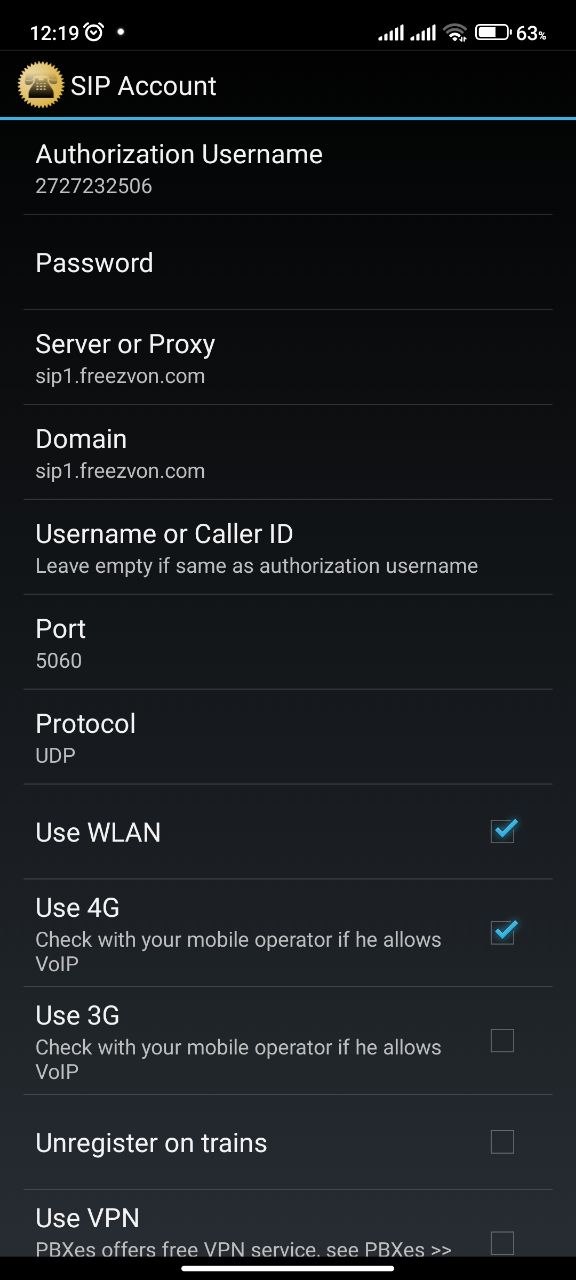
Important: The screenshot above is an interface example and may display another SIP provider's server. When configuring Freezvon, always enter:
Server or Proxy: sip1.freezvon.com
Leave the remaining fields at their default values unless Freezvon support has provided different settings.
If You Use a Freezvon Virtual PBX
If your virtual number is connected through a Freezvon Virtual PBX, use the SIP credentials assigned to the corresponding extension:
- Authorization Username: your SIP login or PBX extension
- Password: your SIP / Voice Password
- Server or Proxy: sip1.freezvon.com
Step 5. Check the Connection Status
After entering the SIP credentials, return to the SIPdroid main screen.
SIPdroid will automatically attempt to register the account with the Freezvon SIP server.
If the indicator in the upper-left corner of the screen turns green or white, the SIP account has been configured successfully.
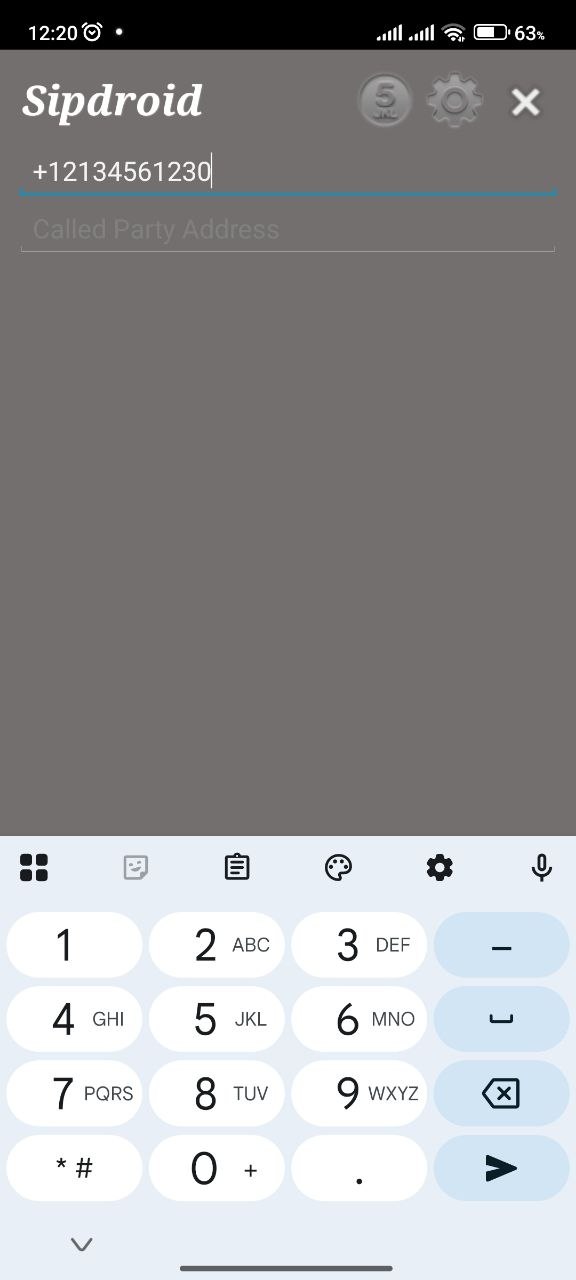
The application is now ready to make and receive calls through your Freezvon SIP account.
Freezvon SIP Settings
| Setting | Value |
|---|---|
| Application | SIPdroid |
| Platform | Android |
| SIP Server / Domain | sip1.freezvon.com |
| Authorization Username | Your Freezvon SIP Username |
| Password | Your Freezvon SIP / Voice Password |
| Successful registration | Green(White) indicator |
If SIPdroid Does Not Connect
If the indicator does not turn green:
- Check that the SIP Username is entered correctly.
- Re-enter the SIP / Voice Password.
- Make sure the server is exactly sip1.freezvon.com
- Check your Internet connection.
- Make sure the SIP account is active.
- Restart SIPdroid after saving the settings.
Once the indicator turns green or white, your Freezvon SIP account is successfully connected to SIPdroid, and you can start making and receiving calls.