FREEZVON
Linphone SIP Account Setup Guide
Android • Freezvon
Step-by-step instructions for registering a Freezvon SIP account in the Linphone app on Android.
| SIP Login | 10 digits |
|---|---|
| SIP Password | 10 characters |
| SIP Domain | sip1.freezvon.com |
| Transport | TCP |
Important: use the SIP login and password provided for your own Freezvon account. The values shown in the screenshots are examples.
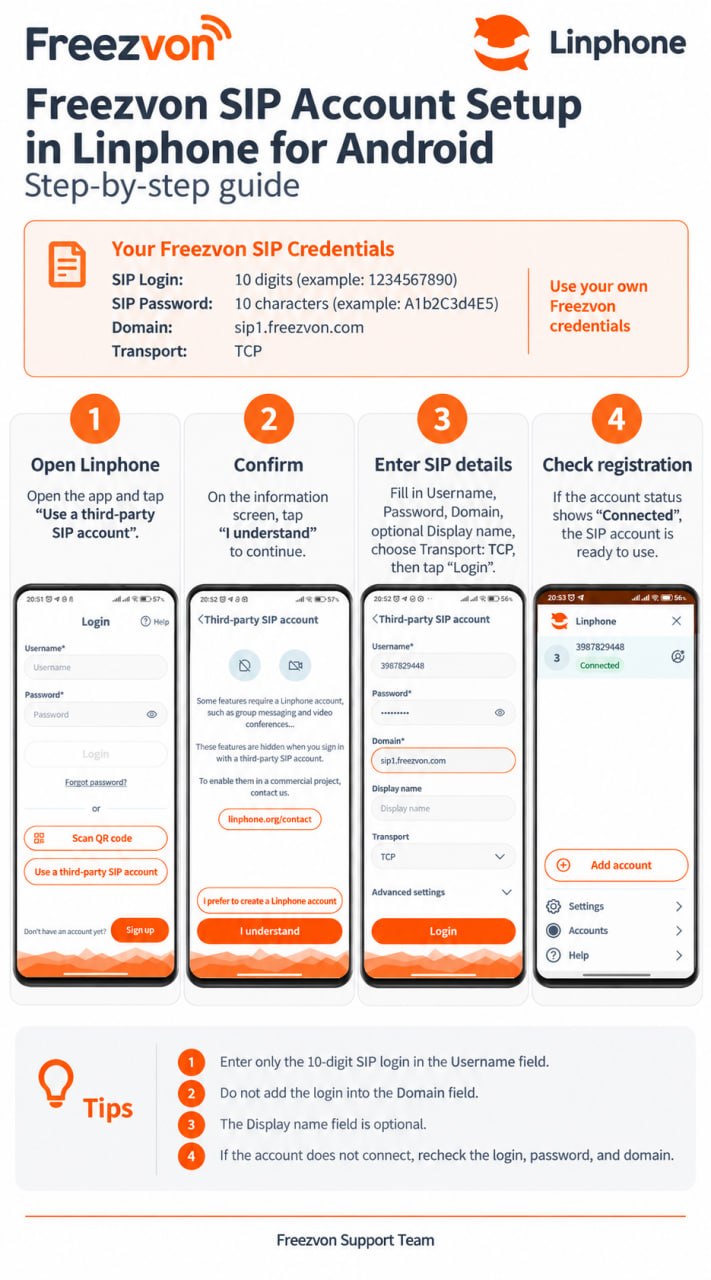
Freezvon • Linphone SIP Setup for Android
Step 1 — Open Linphone and choose a third-party SIP account
Install Linphone from Google Play and open the application.
On the Login screen, tap “Use a third-party SIP account”. Do not enter your Freezvon SIP credentials into the regular Linphone Username and Password fields on this screen.
This option is intended for SIP accounts supplied by external VoIP providers such as Freezvon.
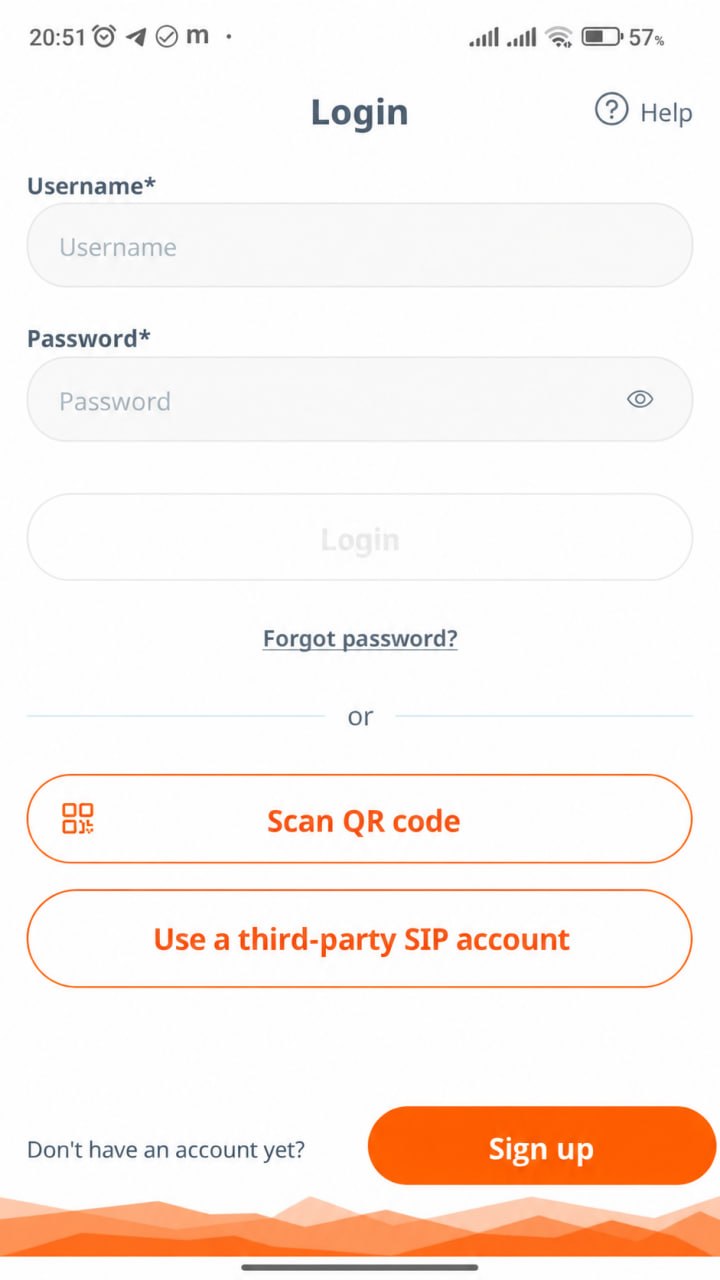
Tap “Use a third-party SIP account”.
Freezvon • Linphone SIP Setup for Android
Step 2 — Confirm the third-party SIP account notice
Linphone will show a notice explaining that some Linphone-specific features are not available when using a third-party SIP account.
Tap “I understand” to continue with your Freezvon SIP account.
You do not need to create a Linphone account for this setup.
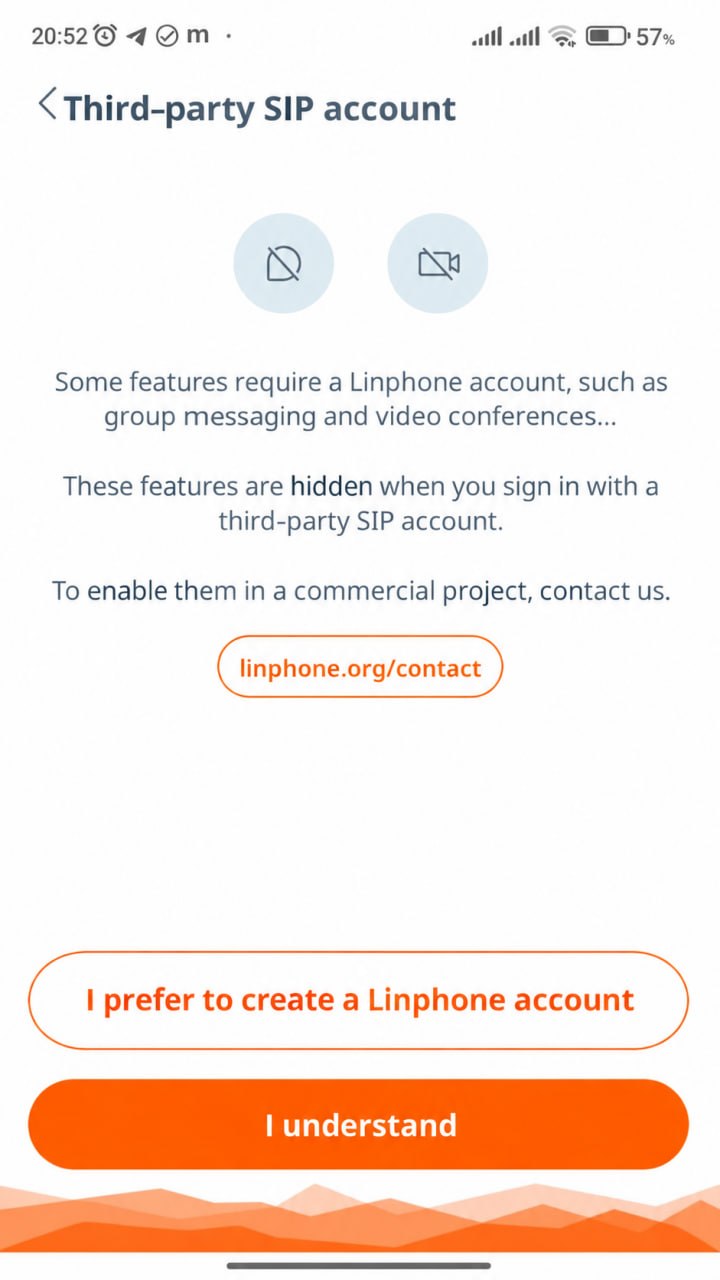
Tap “I understand” to continue.
Freezvon • Linphone SIP Setup for Android
Step 3 — Enter the Freezvon SIP details
Username: enter your 10-digit Freezvon SIP login.
Password: enter your 10-character SIP password.
Domain: enter sip1.freezvon.com exactly as shown.
Display name: optional. You may leave this field empty.
Transport: select TCP.
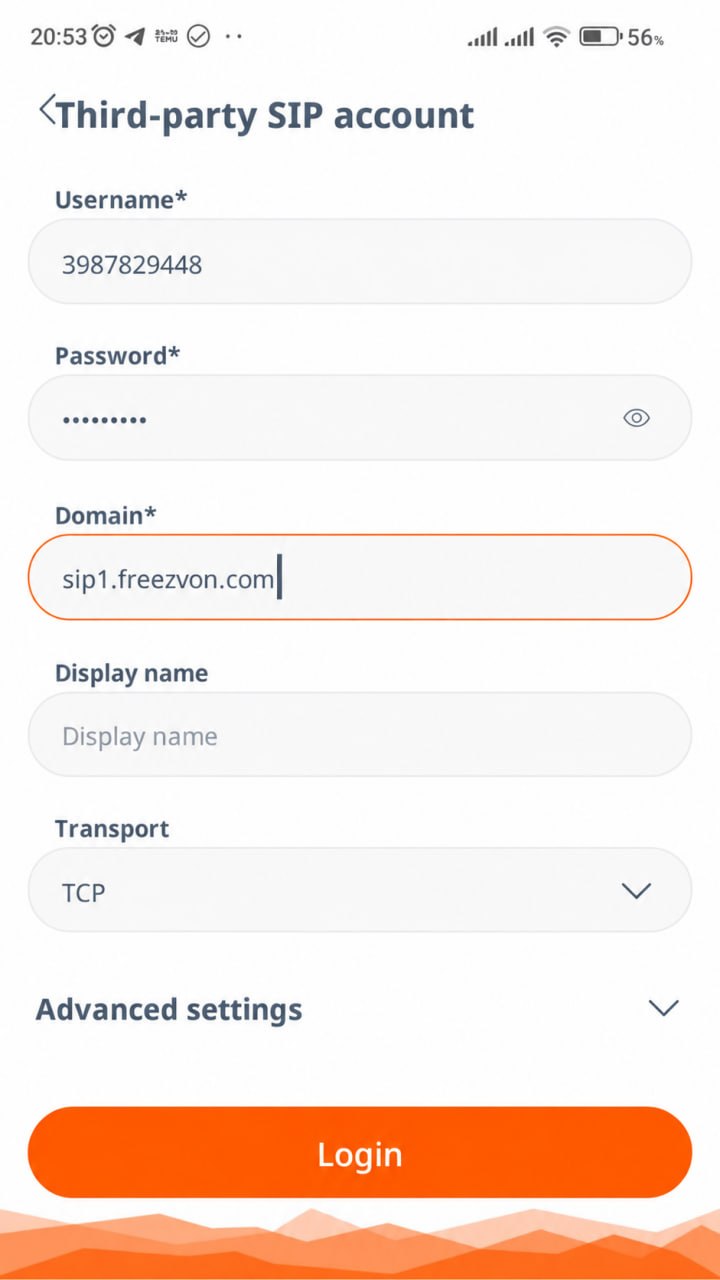
Enter the SIP credentials and domain, select TCP, then tap “Login”.
Freezvon • Linphone SIP Setup for Android
Step 4 — Log in and wait for registration
After all fields are filled in correctly, tap “Login”.
Linphone will contact the Freezvon SIP server and register the account.
Registration usually takes only a few seconds when the credentials and internet connection are correct.
Step 5 — Check the registration status
Open the Linphone account menu after login.
If the account shows “Connected”, the Freezvon SIP account has been registered successfully and is ready to use.
The connected status confirms that Linphone is communicating with the SIP server.
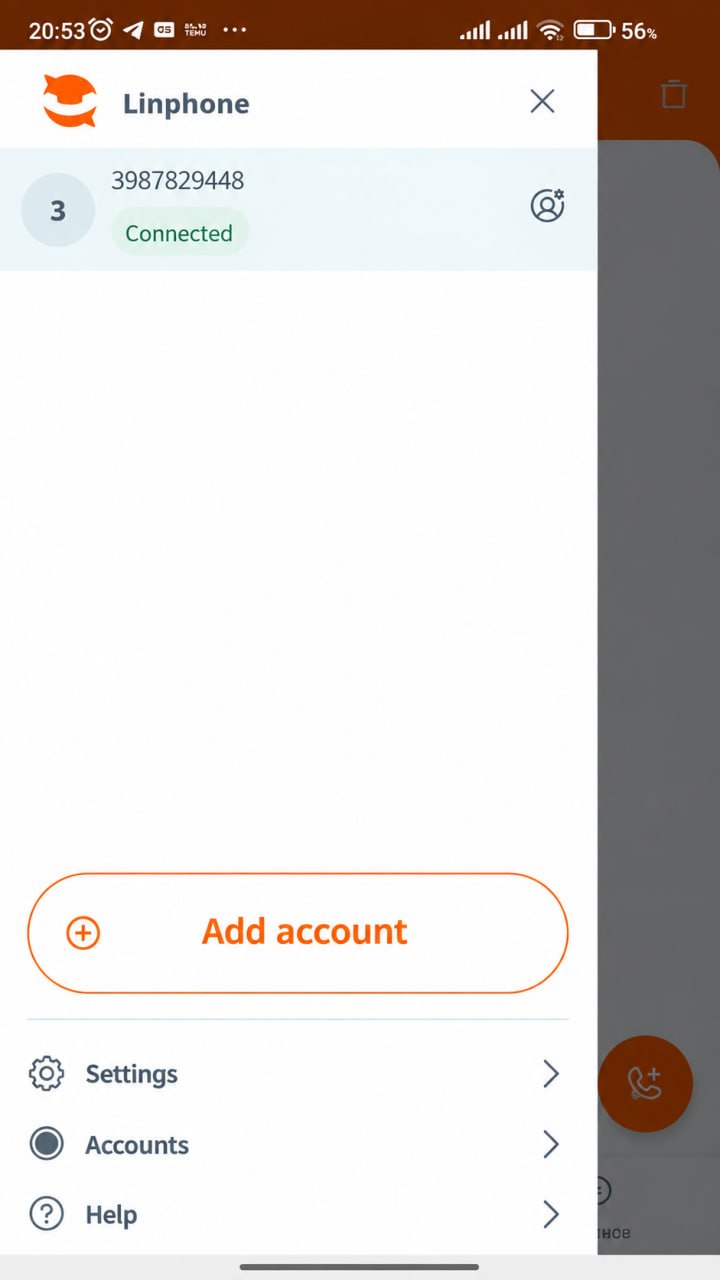
Successful result: “Connected”.
Freezvon • Linphone SIP Setup for Android
Step 6 — Make a test call
Open the Linphone dial pad.
Enter the destination number in international format, for example +44XXXXXXXXXX or +1XXXXXXXXXX.
Tap the Call button. If the call connects and audio works in both directions, the SIP setup is complete.
| Account type | Third-party SIP account |
|---|---|
| Username | 10-digit SIP login |
| Password | 10-character SIP password |
| Domain | sip1.freezvon.com |
| Display name | Optional |
| Transport | TCP |
| Successful status | Connected |
If the account does not connect
- Check that the SIP login contains all 10 digits and no spaces.
- Re-enter the 10-character SIP password carefully. Passwords are case-sensitive.
- Make sure the Domain field is exactly sip1.freezvon.com.
- Confirm that Transport is set to TCP.
- Check the Android device internet connection.
- If the settings are correct but the account still does not connect, contact Freezvon Support.